Replay viewer
Re-watch your stream — with chat scrolling along.
When VOD Manager finishes archiving a stream, you can re-watch it from a private page in your account. The video plays from your storage; chat scrolls beside the player in sync with the moment it happened live. Seek the video and chat snaps to match.
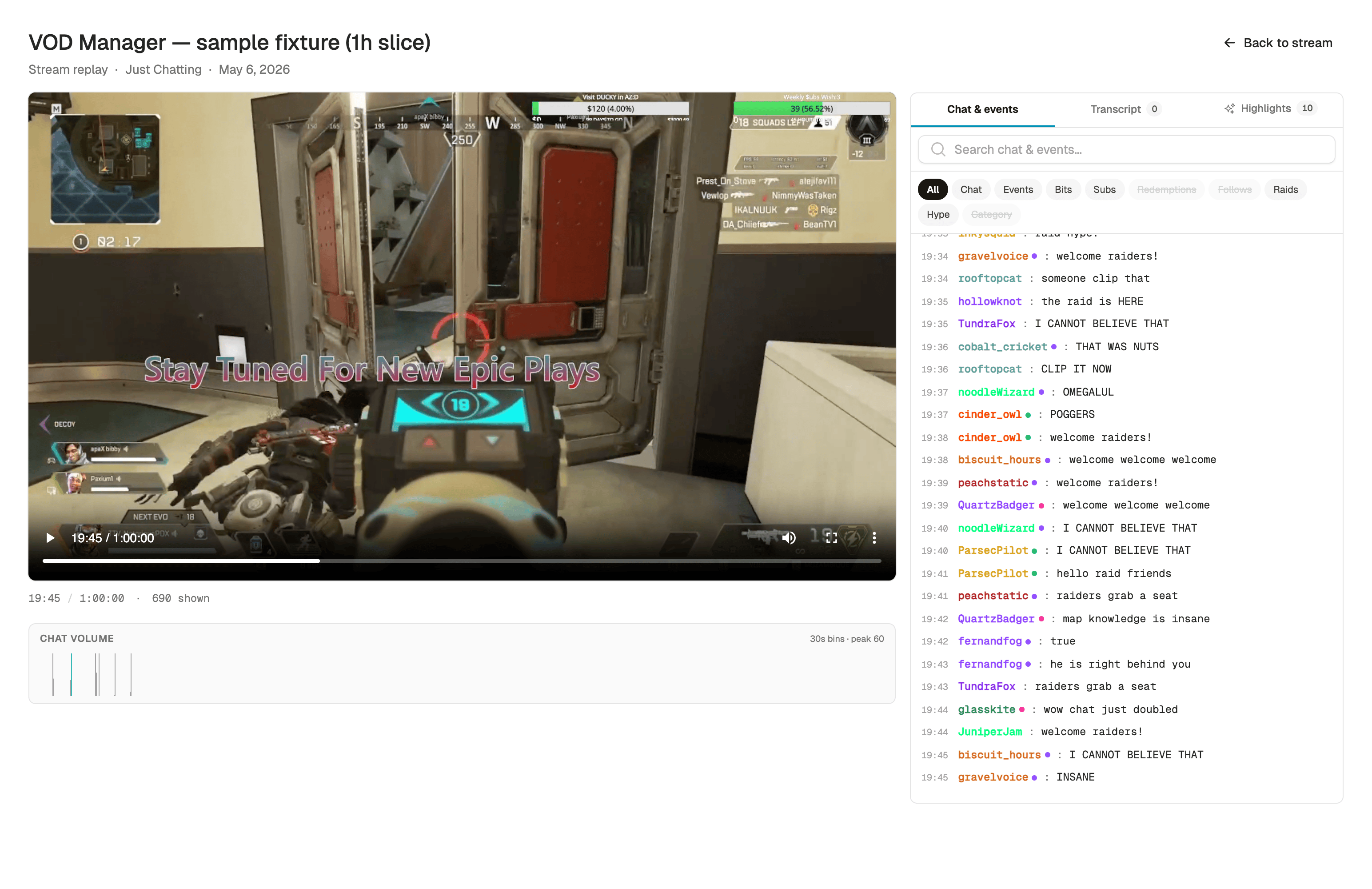
Inside a replay
What you see when you open a replay
Player
Streamed from your own storage
The video plays from the archive you control — S3-family storage, Google Drive, Dropbox, and OneDrive all fit the same replay page.
Chat sync
The feed follows the video
Every message that scrolled by during the stream stays in time with the player. Drag the video scrubber and chat jumps along.
Optional highlights
When tracking is enabled
Bits, subs, raids, and hype trains can appear inline in the feed, color-coded, after you enable that tracking on your Twitch connection.
Filter the feed to what you're looking for
Open the replay, hit Bits to find every cheer that came through, or Subs to find every new sub. The video keeps playing; the feed just narrows.
1:18:35
mira: that peek was clean
1:18:39
Raid brightfox brought 42 viewers
1:18:44
jules: welcome in everyone
Early access
More to do in the replay when smart features are on
Transcripts and auto-detected highlights show up inline in the replay player when those features are enabled on your account. See the smart-features overview for what they do and how to request access.
Transcripts
Captions + searchable transcript pane
Early accessWhen a transcript is archived next to the VOD, the player auto-loads it as a captions track (toggle via the CC button). The sidebar grows a 5th pane with the full transcript — type to filter, click any line to seek, hit "Resume live" to snap back.
How transcripts work
Auto-highlights
Highlights pane + one-click clip
Early accessA highlights pane lists the top moments scored from chat spikes + Twitch events + transcript trigger words. Click a highlight to jump there; click "Create clip" to cut a stream-copy clip without re-encoding.
How auto-highlights work
Works for every archive — including ones Twitch deleted
Twitch deletes Affiliate VODs after 14 days; Partners, Turbo users, and Prime users get up to 60 days. Your replay still works after that, because VOD Manager plays the saved file from your storage instead of depending on Twitch to still have the source.
The chat feed keeps the current window snappy by showing about the last 30 minutes of context around the playhead. Need more? Click Show earlier and the feed expands backward.
Keep reading
Related guides
Chat
Archiving the chat replay
Every message, badge, and emote rides along with the VOD — the data that powers the synced feed.
More details
Analytics
Per-stream analytics
Peak chat moments, top chatters, and event totals for every archived stream — with click-to-seek into the replay.
More details
Early access
Smart features overview
What the transcript and auto-highlights panes do, and how to request early access.
More details
Ready after archive
Your next stream becomes a replay automatically
Connect your Twitch account and a storage provider, and your next stream's replay is ready as soon as the archive completes.